
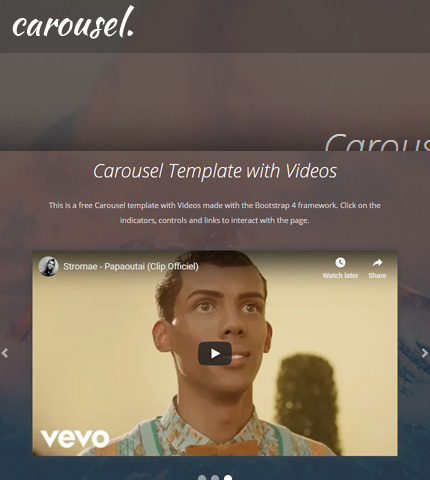
A few months ago I published a tutorial about how to use videos with modals in Bootstrap.
Today we’ll see how to use videos in Bootstrap carousels.
You’ll learn how to embed videos from popular video sites like YouTube and Vimeo, and use them in slideshows in your web projects.
At the end, you can download all the template files and use them easily when you need them. Let’s begin!
Want to Save this Article?
1. Introduction
In this tutorial I’ve embedded two videos from YouTube and one from Vimeo. I’ve used version 4.3.1 of the Bootstrap framework.
Let’s begin with the HTML code.
Read also: Bootstrap Carousel with Videos, Images and Captions: How To + Template
2. The HTML
The HTML is very simple.
We use the carousel component as recommended in the Bootstrap documentation here.
Next, instead of using images, we embed three videos, one for each slide, using the Bootstrap Embed, as explained here.
You can also use a mix of images and videos, very easily, if you need: just add images in some slides, and videos in some others.
Here is the HTML code (file “index.html”), I’m showing only the carousel’s code (the top of the page):
<!-- Top content -->
<div class="top-content">
<div class="container">
<!-- Title and description row -->
<div class="row">
<div class="col col-md-10 offset-md-1 col-lg-8 offset-lg-2">
<h1>Carousel Template with Videos</h1>
<div class="description">
<p>
This is a free Carousel template with Videos made with the Bootstrap 4 framework.
Click on the indicators, controls and links to interact with the page.
</p>
</div>
</div>
</div>
<!-- End title and description row -->
<!-- Carousel row -->
<div class="row">
<div class="col col-md-10 offset-md-1 col-lg-8 offset-lg-2">
<!-- Carousel -->
<div id="carousel-example" class="carousel slide">
<ol class="carousel-indicators">
<li data-target="#carousel-example" data-slide-to="0" class="active"></li>
<li data-target="#carousel-example" data-slide-to="1"></li>
<li data-target="#carousel-example" data-slide-to="2"></li>
</ol>
<div class="carousel-inner">
<div class="carousel-item active">
<div class="embed-responsive embed-responsive-16by9">
<iframe class="embed-responsive-item" src="https://www.youtube.com/embed/6hgVihWjK2c?rel=0" allowfullscreen></iframe>
</div>
</div>
<div class="carousel-item">
<div class="embed-responsive embed-responsive-16by9">
<iframe class="embed-responsive-item" src="https://player.vimeo.com/video/84910153?title=0&byline=0&portrait=0&badge=0&color=ffffff" allowfullscreen></iframe>
</div>
</div>
<div class="carousel-item">
<div class="embed-responsive embed-responsive-16by9">
<iframe class="embed-responsive-item" src="https://www.youtube.com/embed/oiKj0Z_Xnjc" allowfullscreen></iframe>
</div>
</div>
</div>
<a class="carousel-control-prev" href="#carousel-example" role="button" data-slide="prev">
<span class="carousel-control-prev-icon" aria-hidden="true"></span>
<span class="sr-only">Previous</span>
</a>
<a class="carousel-control-next" href="#carousel-example" role="button" data-slide="next">
<span class="carousel-control-next-icon" aria-hidden="true"></span>
<span class="sr-only">Next</span>
</a>
</div>
<!-- End carousel -->
</div>
</div>
<!-- End carousel row -->
</div>
</div>
3. The CSS and JavaScript
I’ve used some CSS code for styling the page and some JavaScript (jQuery) for the fullscreen background behind the carousel, and for the top menu.
I will not show this code here to keep the tutorial short. You can find it in the files “style.css” (folder “assets/css”), and in the file “scripts.js” (folder “assets/js”).
4. Making It Responsive
As a last step, we make some CSS adjustments in the “media-queries.css” file (folder “assets/css”) to make the page look good on all devices, which have different screen sizes.
For example we hide the indicators (the left and right arrows) when the page is visited from small devices like mobile phones.
Also, we increase the distance between control buttons (below the video) to make them easier to use on touch devices.
We do all this with the code (CSS media queries) below. You can see all the code in the file “media-queries.css”.
@media (max-width: 767px) {

    /* ... */

    .top-content .carousel-control-prev,
    .top-content .carousel-control-next { display: none; }
    .top-content .carousel-indicators li { margin-left: 10px; margin-right: 10px; }

    /* ... */

}
5. Demo, Download and License
SUBSCRIBE TO DOWNLOAD THE TEMPLATE
LICENSE:
You can use this template in personal and commercial projects, but you can’t sell or distribute it directly, “as is”. If you plan to use it, a link to this page or any form of spreading the word will be much appreciated.
6. Conclusion
Creating a video slideshow with the Bootstrap carousel component is not difficult and can be done quite quickly, as this framework offers some nice, ready-to-use elements that can save us a lot of time when working on our web projects.
Now download the template, make your own modifications and let me know in the comments what you think or if you have any question.
Excellent, thank you, one question hoe to add autoplay to the carousel ?
thank you
Thanks 😉
Maybe this can help you:
https://azmind.com/bootstrap-carousel-no-autoplay/
Can you use videos that aren’t embedded. Does it work with self-posted videos?
Hi,
Is there a way to include images in this carousel that are responsive like the video? When i try to include images I get scroll bars.
Thanks!
Here is how you can do it:
https://azmind.com/bootstrap-carousel-with-videos-images-captions/
Thanks, interesting contribution! I am trying to add a caption that should be below. Unfortunately I can’t do that. Do you have a idea?
Here is how you can do it:
https://azmind.com/bootstrap-carousel-with-videos-images-captions/
Any idea on how to auto-stop the current video when sliding to the next video carousel item? It keeps playing for me after I move on to the next video…
I’d also like to if there’s a way to stop the previous video playing when you scroll to the next video in the carousel.
I think this can help:
https://azmind.com/bootstrap-lightbox-gallery/
Thanks a lot fr not only sharing this info, but also allowing to download the coding.